2018-07-21 22:39:43 +08:00
|
|
|
|
PPGo_Job定时任务管理系统 V2.0
|
|
|
|
|
|
====
|
2018-08-14 11:41:59 +08:00
|
|
|
|

|
|
|
|
|
|
|
2018-08-07 13:23:16 +08:00
|
|
|
|
PPGo_Job是一款定时任务可视化的、多人多权限的管理系统,采用golang开发,安装方便,资源消耗少,支持大并发,可同时管理多台服务器上的定时任务。
|
|
|
|
|
|
|
2018-07-21 22:39:43 +08:00
|
|
|
|
前言:PPGo_Job V1.x版本开源一年多,好几个朋友的公司都在用,反响还不错,当然,也有好多朋友提了不少合理的意见和建议,所以这次干脆重构了一下,连UI也重新编码。目前V2.0版本
|
|
|
|
|
|
已经用于生产环境。
|
|
|
|
|
|
|
2018-08-07 13:23:16 +08:00
|
|
|
|
码云地址:https://gitee.com/georgehao/PPGo_Job
|
2018-08-14 11:41:59 +08:00
|
|
|
|
Github地址:https://github.com/george518/PPGo_Job
|
2018-08-07 13:23:16 +08:00
|
|
|
|
|
2018-08-12 23:50:34 +08:00
|
|
|
|
文档地址:http://www.haodaquan.com/topics/1###
|
2018-08-14 11:41:59 +08:00
|
|
|
|
Wiki:https://github.com/george518/PPGo_Job/wiki
|
|
|
|
|
|
|
2018-08-12 23:50:34 +08:00
|
|
|
|
|
2018-07-21 22:39:43 +08:00
|
|
|
|
V1.x版本是一个简单的定时任务管理系统,进入V1.0 :https://github.com/george518/PPGo_Job/releases/tag/v1.2.1
|
|
|
|
|
|
相对于V1.x版本,V2.0新增以下功能和特性:
|
|
|
|
|
|
|
2018-07-21 22:48:17 +08:00
|
|
|
|
- 1、全新UI,基于LayUI2.3构建全新页面,后端模板手工搭建,让操作更加人性化。后台模板地址:https://github.com/george518/PP_admin-template
|
2018-07-21 22:39:43 +08:00
|
|
|
|
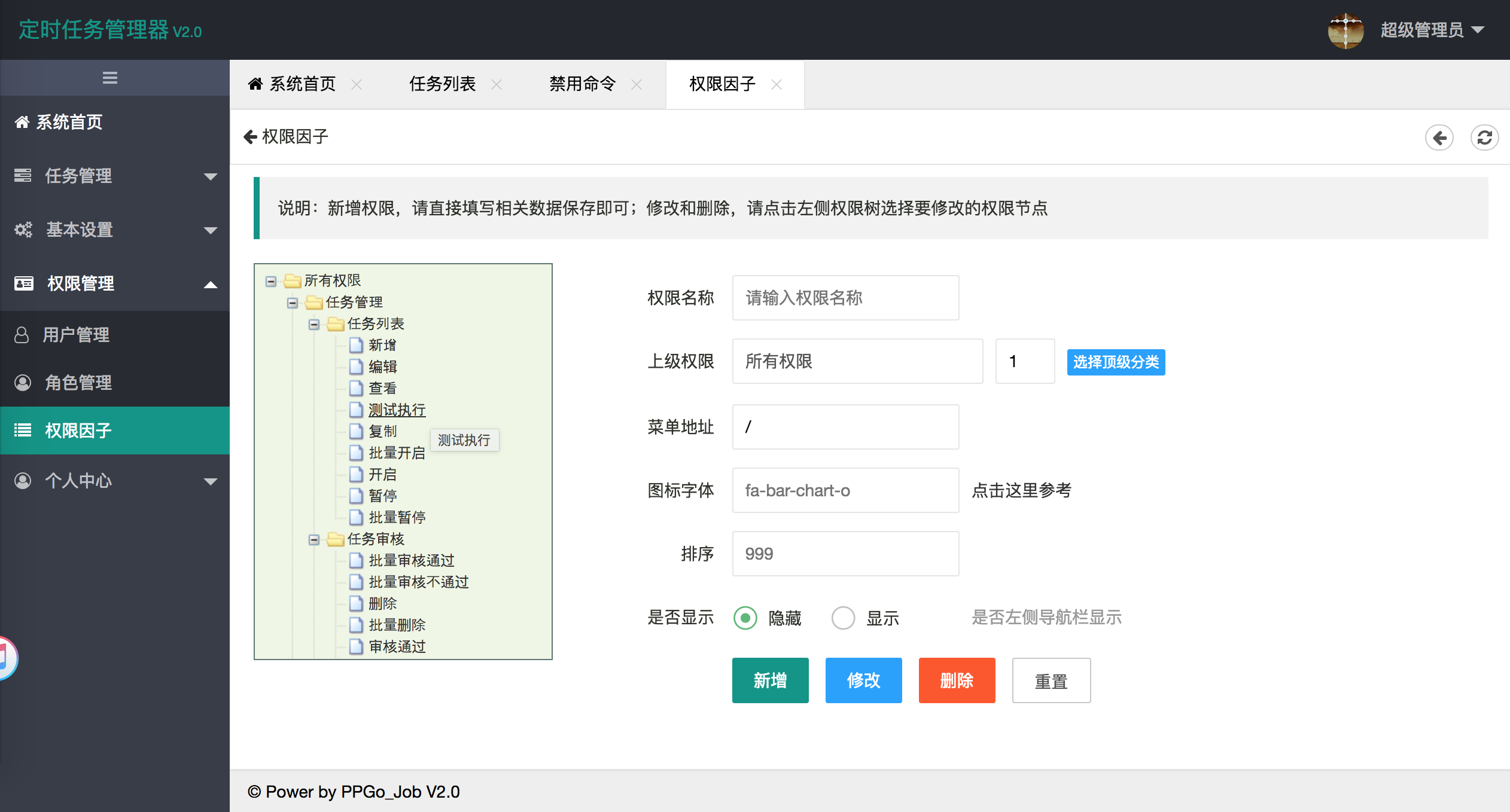
- 2、新增权限管理功能,根据菜单权限、操作权限和数据权限进行划分,方便多用户多权限管理定时任务。
|
|
|
|
|
|
- 3、新增服务器复制功能,让服务器资源添加更加方便。
|
|
|
|
|
|
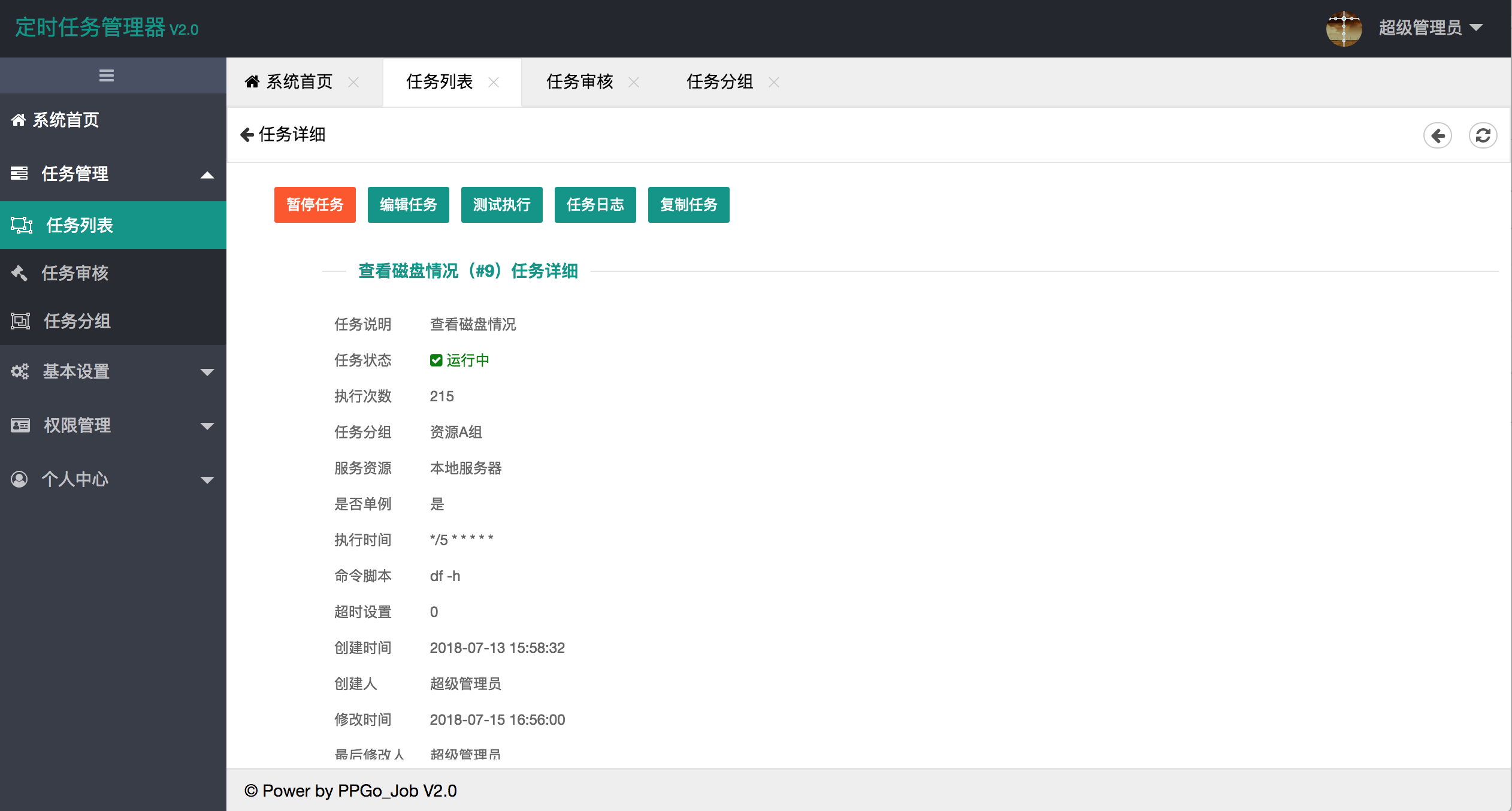
- 4、新增定时任务详情页面,将任务相关操作更加集中起来操作。
|
|
|
|
|
|
- 5、新增任务审核功能,提高任务的管控能力。
|
|
|
|
|
|
- 6、新增禁止命令管理功能,配合任务审核功能,提高任务运行安全性。
|
|
|
|
|
|
- 7、优化日志详情页面,查看日志更方便。
|
|
|
|
|
|
|
|
|
|
|
|
感觉不错的话,给个星星吧 :)
|
|
|
|
|
|
|
|
|
|
|
|
也可以请我喝水
|
|
|
|
|
|
----
|
|
|
|
|
|

|
|
|
|
|
|
|
|
|
|
|
|
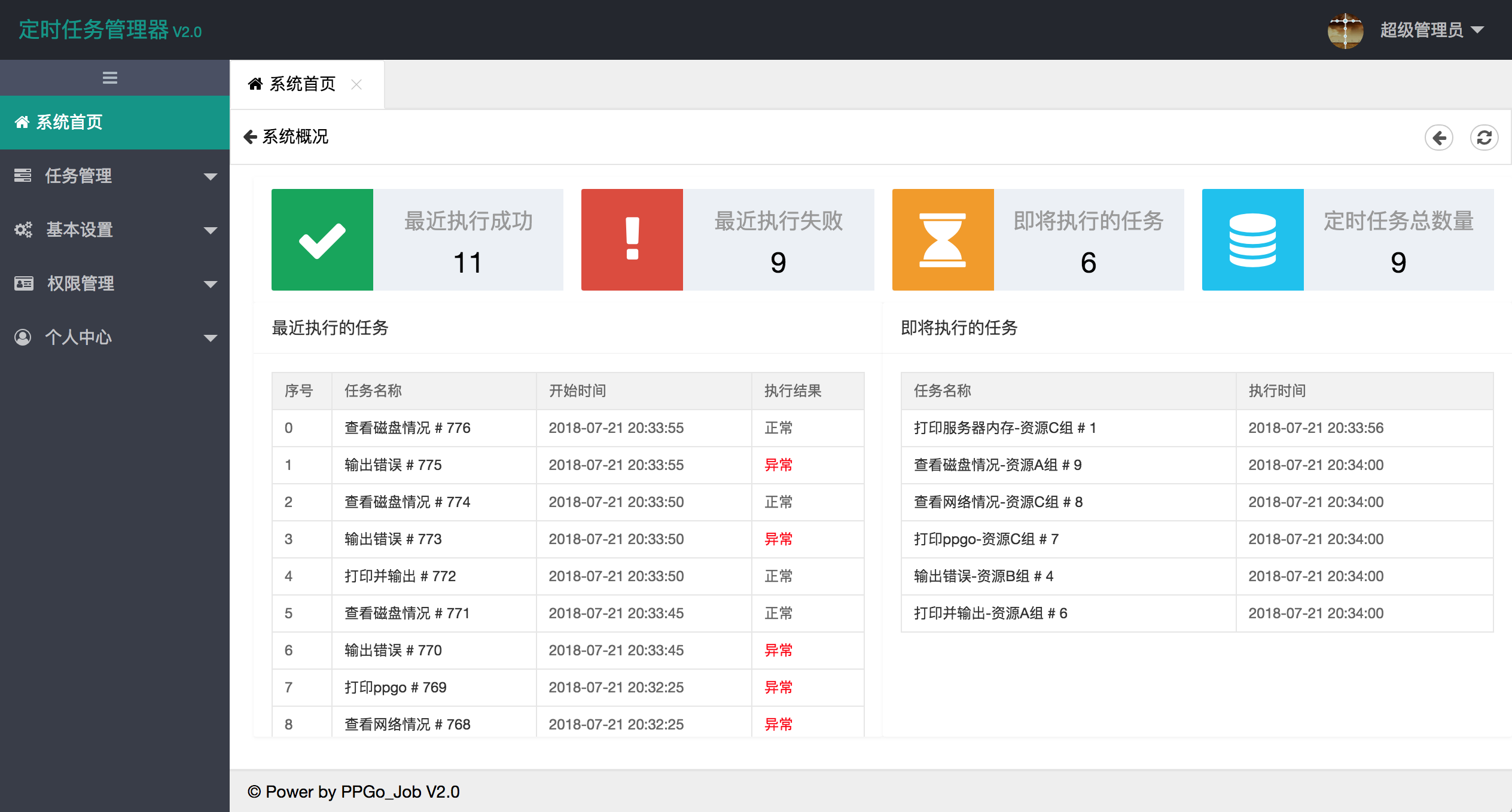
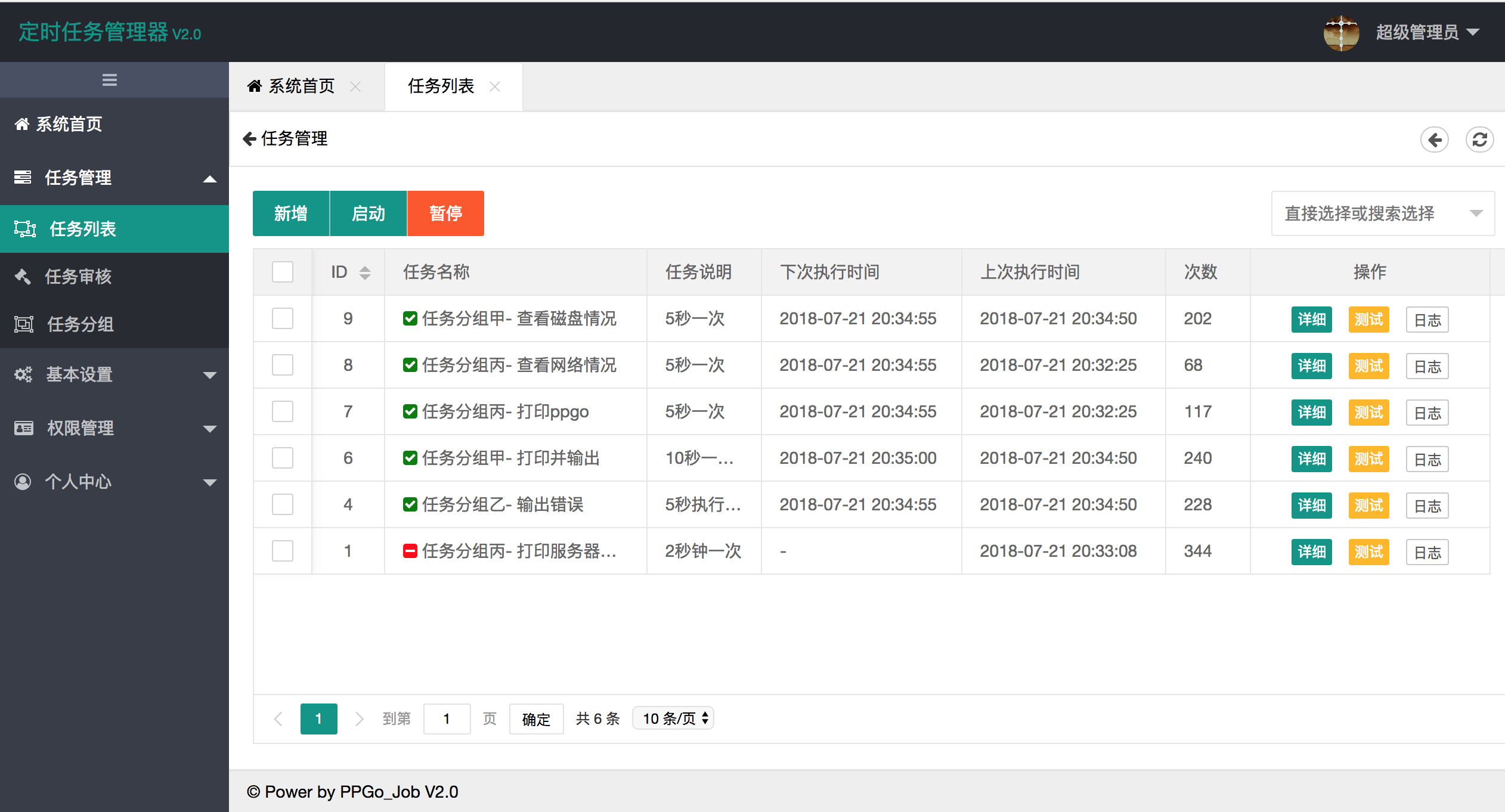
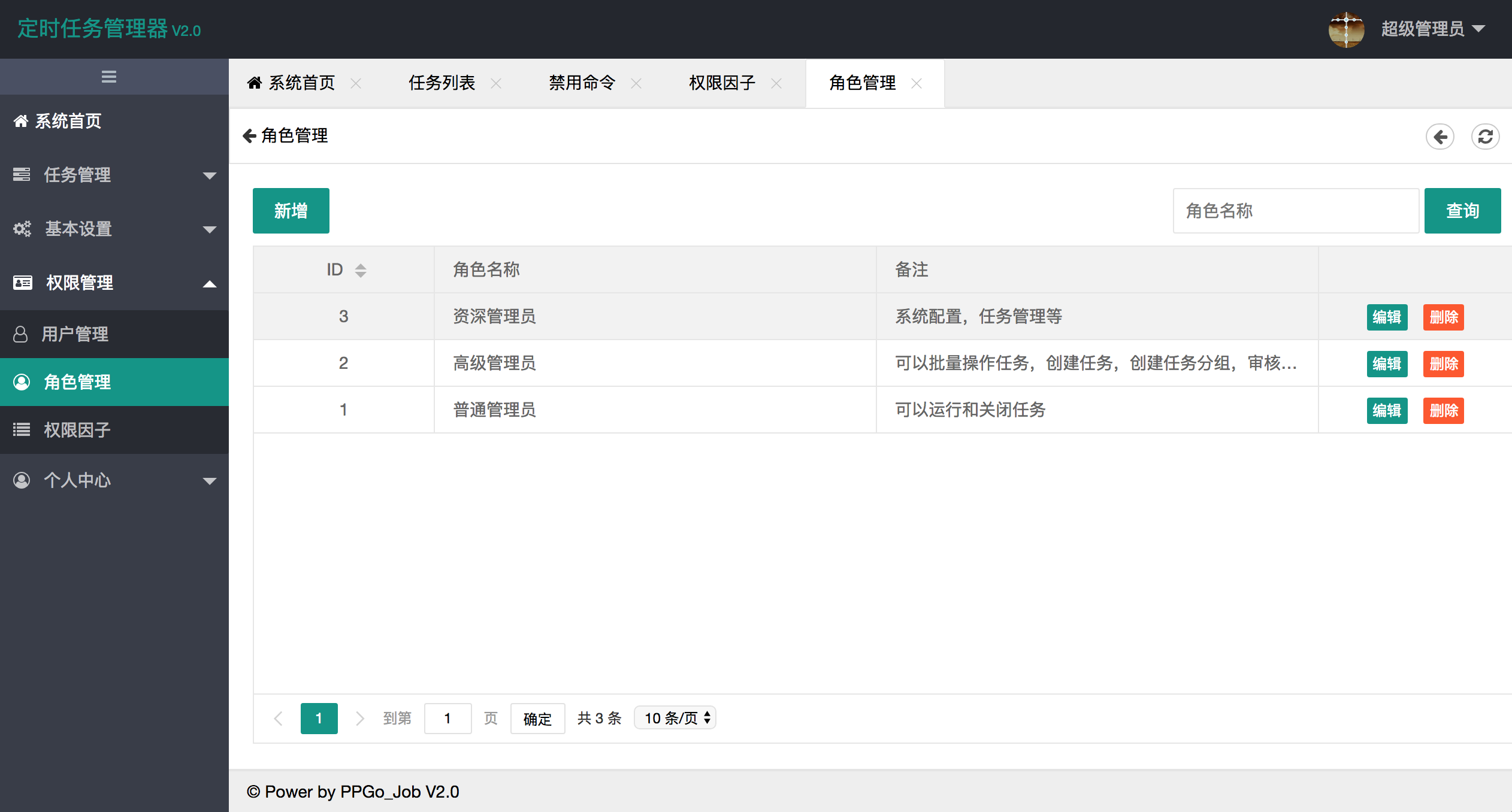
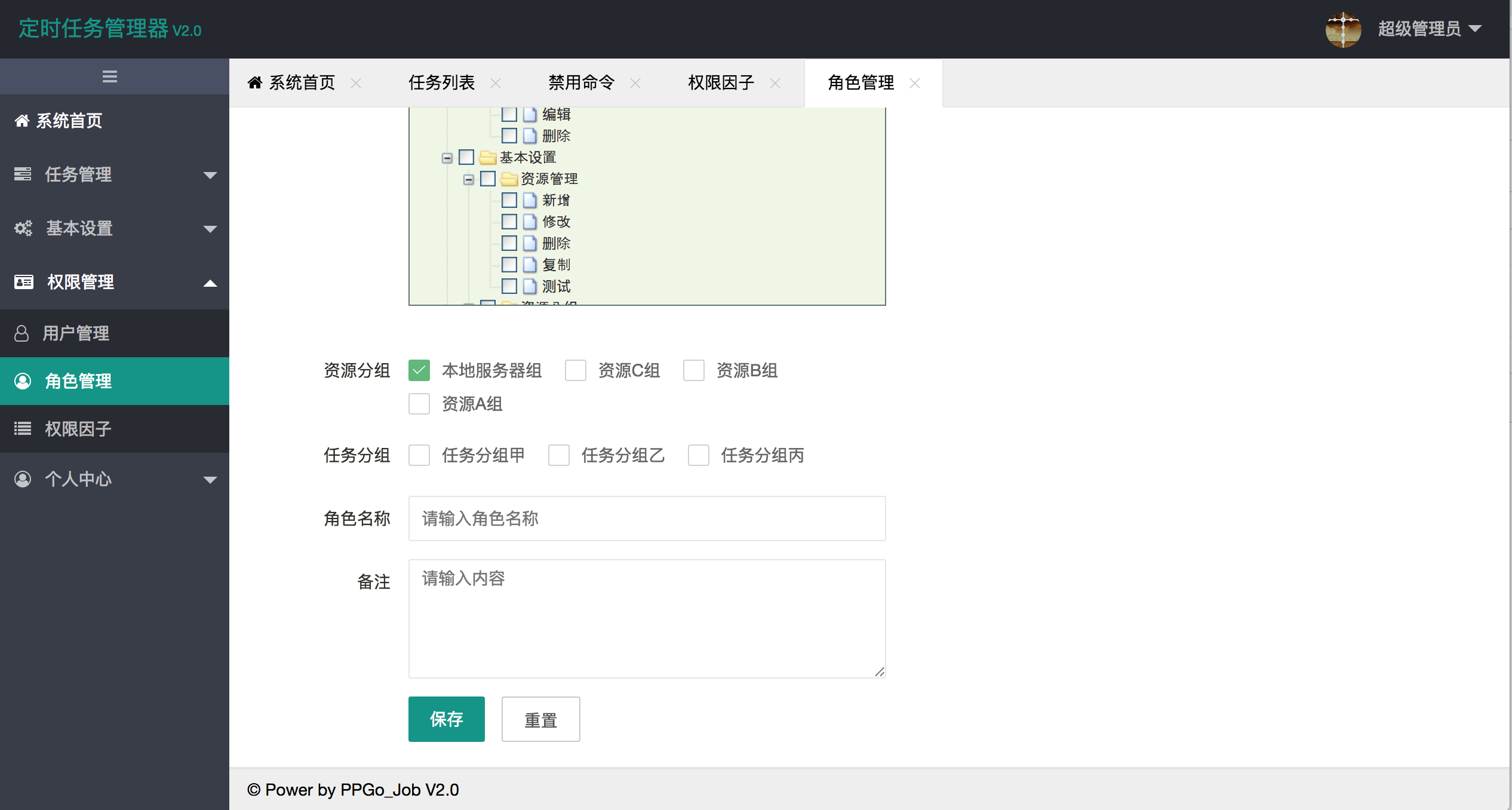
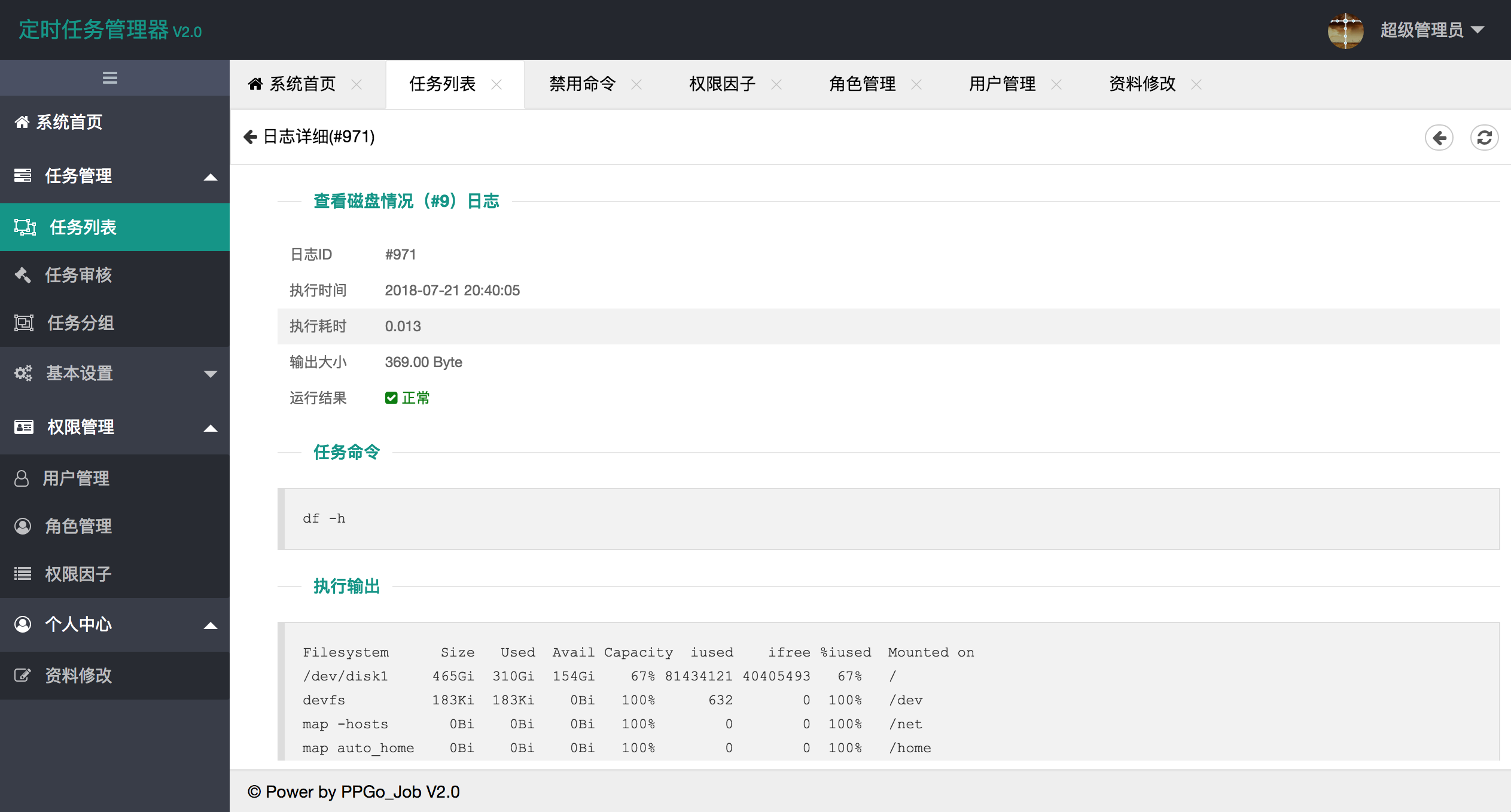
先看效果
|
|
|
|
|
|
----
|
2019-02-18 09:05:41 +08:00
|
|
|
|
|
|
|
|
|
|
|
|
|
|
|
|
|
|
|
|
|
|
|
|
|
|
|
|
|
|
|
|
|
|
|
|
|
|
|
|
|
2018-07-21 23:08:23 +08:00
|
|
|
|
|
2018-07-21 22:39:43 +08:00
|
|
|
|
|
|
|
|
|
|
安装方法
|
|
|
|
|
|
----
|
|
|
|
|
|
|
|
|
|
|
|
方法一、 编译安装
|
|
|
|
|
|
|
|
|
|
|
|
- go get github.com/george518/PPGo_Job
|
|
|
|
|
|
- 创建mysql数据库,并将ppgo_job2.sql导入
|
|
|
|
|
|
- 修改config 配置数据库
|
|
|
|
|
|
- 运行 go build
|
|
|
|
|
|
- 运行 ./run.sh start|stop
|
|
|
|
|
|
|
|
|
|
|
|
方法二、直接使用
|
|
|
|
|
|
|
|
|
|
|
|
linux
|
|
|
|
|
|
|
|
|
|
|
|
- 进入 https://github.com/george518/PPGo_Job/releases
|
|
|
|
|
|
- 下载 ppgo_job-linux-2.1.0.zip 并解压
|
|
|
|
|
|
- 进入文件夹,设置好数据库(创建数据库,导入ppgo_job2.sql)和配置文件(conf/app.conf)
|
|
|
|
|
|
- 运行 ./run.sh start|stop
|
|
|
|
|
|
|
|
|
|
|
|
mac
|
|
|
|
|
|
|
|
|
|
|
|
- 进入https://github.com/george518/PPGo_Job/releases
|
|
|
|
|
|
- 下载 ppgo_job-mac-2.1.0.zip 并解压
|
|
|
|
|
|
- 进入文件夹,设置好数据库(创建数据库,导入ppgo_job2.sql)和配置文件(conf/app.conf)
|
|
|
|
|
|
- 运行 ./run.sh start|stop
|
|
|
|
|
|
|
|
|
|
|
|
windows
|
|
|
|
|
|
|
2019-02-18 02:59:05 +08:00
|
|
|
|
- 进入 https://github.com/george518/PPGo_Job/releases
|
|
|
|
|
|
- 下载 ppgo_job-linux-2.1.0.zip 并解压
|
|
|
|
|
|
- 进入文件夹,设置好数据库(创建数据库,导入ppgo_job2.sql)和配置文件(conf/app.conf)
|
2019-02-18 09:23:57 +08:00
|
|
|
|
- 运行 go build
|
|
|
|
|
|
- 运行 run.bat
|
2018-07-21 22:39:43 +08:00
|
|
|
|
|
2018-07-21 22:48:17 +08:00
|
|
|
|
----
|
2018-07-21 22:39:43 +08:00
|
|
|
|
前台访问:http://your_host:8080
|
|
|
|
|
|
用户名:admin 密码:123456
|
|
|
|
|
|
|
|
|
|
|
|
配置文件
|
|
|
|
|
|
----
|
|
|
|
|
|
根据自己的情况修改数据库和启动端口
|
|
|
|
|
|
```
|
|
|
|
|
|
appname = PPGo_Job2
|
|
|
|
|
|
httpport = 8080
|
|
|
|
|
|
runmode = dev
|
|
|
|
|
|
|
2018-08-13 22:08:25 +08:00
|
|
|
|
version= V2.2
|
|
|
|
|
|
|
2018-07-21 22:39:43 +08:00
|
|
|
|
# 允许同时运行的任务数
|
|
|
|
|
|
jobs.pool = 1000
|
|
|
|
|
|
|
|
|
|
|
|
# 站点名称
|
|
|
|
|
|
site.name = 定时任务管理器
|
|
|
|
|
|
|
2019-02-17 07:07:33 +08:00
|
|
|
|
#通知方式 0=邮件,1=信息,2=钉钉,3=微信
|
2018-08-13 22:08:25 +08:00
|
|
|
|
notify.type = 0
|
|
|
|
|
|
|
2018-07-21 22:39:43 +08:00
|
|
|
|
# 数据库配置
|
|
|
|
|
|
db.host = 127.0.0.1
|
|
|
|
|
|
db.user = root
|
|
|
|
|
|
db.password = "123456"
|
|
|
|
|
|
db.port = 3306
|
|
|
|
|
|
db.name = ppgo_job2
|
|
|
|
|
|
db.prefix = pp_
|
|
|
|
|
|
db.timezone = Asia/Shanghai
|
2018-08-13 22:08:25 +08:00
|
|
|
|
|
|
|
|
|
|
# 邮件通知配置
|
|
|
|
|
|
email.host = smtp.mxhichina.com
|
|
|
|
|
|
email.port = 25
|
|
|
|
|
|
email.from = ci@xxx.cn
|
|
|
|
|
|
email.user = ci@xxx.cn
|
|
|
|
|
|
email.password = "xxxxxx"
|
|
|
|
|
|
email.pool = 10
|
|
|
|
|
|
|
|
|
|
|
|
# 短信通知方式配置
|
|
|
|
|
|
msg.url = http://chanxiyou.com/api/tools/send_sms
|
|
|
|
|
|
msg.pool = 10
|
2019-02-17 07:07:33 +08:00
|
|
|
|
|
|
|
|
|
|
# 钉钉通知配置
|
|
|
|
|
|
dingtalk.url = "https://oapi.dingtalk.com/robot/send?access_token=%s"
|
|
|
|
|
|
dingtalk.pool = 10
|
|
|
|
|
|
|
|
|
|
|
|
# 微信通知方式配置
|
|
|
|
|
|
wechat.url = http://xx.com/api/tools/send_wechat
|
|
|
|
|
|
wechat.pool = 10
|
2018-07-21 22:39:43 +08:00
|
|
|
|
```
|
|
|
|
|
|
|
|
|
|
|
|
编译安装-可能会遇到的问题
|
|
|
|
|
|
----
|
|
|
|
|
|
go build 时遇到以下错误:
|
|
|
|
|
|
jobs/job.go:19:2: cannot find package "golang.org/x/crypto/ssh" in any of:
|
|
|
|
|
|
|
|
|
|
|
|
需要 git clone https://github.com/golang/crypto.git
|
|
|
|
|
|
并拷贝到 $GOPATH/src/golang.org/x/ 下就OK
|
2019-02-17 09:15:19 +08:00
|
|
|
|
|
2019-02-17 07:07:33 +08:00
|
|
|
|
或
|
2019-02-17 09:15:19 +08:00
|
|
|
|
|
2019-02-17 07:07:33 +08:00
|
|
|
|
git clone https://github.com/golang/crypto.git $GOPATH/src/golang.org/x/crypto
|
2018-07-21 22:39:43 +08:00
|
|
|
|
|
2019-02-12 16:41:44 +08:00
|
|
|
|
# Docker
|
|
|
|
|
|
本地编译好的2进制文件放在根目录下执行下面的命令即可拥有
|
2019-02-12 16:55:18 +08:00
|
|
|
|
```bash
|
|
|
|
|
|
CGO_ENABLED=0 GOOS=linux GOARCH=amd64 go build
|
|
|
|
|
|
```
|
|
|
|
|
|
|
2019-02-12 16:41:44 +08:00
|
|
|
|
```
|
|
|
|
|
|
docker-compose up -d
|
|
|
|
|
|
|
|
|
|
|
|
#日志查看
|
|
|
|
|
|
docker-compose logs -f web
|
|
|
|
|
|
|
|
|
|
|
|
```
|
2019-02-18 02:59:05 +08:00
|
|
|
|
# Windows远程执行
|
|
|
|
|
|
|
|
|
|
|
|
1.开启telnet功能
|
|
|
|
|
|
|
|
|
|
|
|
控制面板->程序和功能->打开或关闭Windows功能,选择Telnet服务端和Telnet客户端
|
|
|
|
|
|
|
|
|
|
|
|
2.启动telnet服务
|
|
|
|
|
|
|
|
|
|
|
|
控制面板->管理工具->服务->Telnet->启动类型改为自动并启动
|
|
|
|
|
|
|
|
|
|
|
|
3.登陆授权
|
|
|
|
|
|
|
|
|
|
|
|
控制面板->管理工具->本地安全策略,在本地安全策略中,安全设置->本地策略->安全选项->网络访问:本地帐户的共享和安全模型->经典
|
|
|
|
|
|
|
|
|
|
|
|
控制面板->管理工具->本地安全策略->安全设置->本地策略->安全选项->帐户:使用空密码的本地帐户只允许进行控制台登录->已禁用
|
|
|
|
|
|
|
|
|
|
|
|
控制面板->管理工具->计算机管理->系统工具->本地用户和组->组->TelnetClients->添加用户
|
2019-02-12 16:41:44 +08:00
|
|
|
|
|
2018-07-21 23:10:52 +08:00
|
|
|
|
联系我
|
|
|
|
|
|
----
|
|
|
|
|
|
qq群号:547564773
|
|
|
|
|
|
欢迎交流,欢迎提交代码。
|
2018-07-21 22:39:43 +08:00
|
|
|
|
|
|
|
|
|
|
|
|
|
|
|
|
|